

AI browser agents read the live page: its accessibility information or a screenshot of it. If your prices, product details and buttons aren’t exposed clearly in those forms, an agent can miss them, so the fixes are mostly server-rendered content, semantic HTML and correct labels.
The products keep changing. OpenAI folded its Atlas browser into ChatGPT Work, with August 9, 2026 set as the date Atlas would stop working. Claude in Chrome became generally available on paid plans on August 26, 2026. Google announced Gemini auto browse for US Workspace users in April 2026. The way these tools read pages matters more than which one is on top this month.
Contents
- Search Mode and Agent Mode
- What Agents See on Your Pages
- What a Fix Looks Like
- Why JavaScript-Heavy Sites Carry More Risk
- What llms.txt Can and Can’t Do
- MCP Endpoints
- WebMCP: Tools a Page Can Offer Agents
- What to Fix First
- How to Test Your Site
- Why This Is Worth Doing Now
Search Mode and Agent Mode
In search mode, an AI product answers from indexed or fetched text. Your levers are familiar: be crawlable, say things clearly, and earn mentions elsewhere.
In agent mode, the software opens the page and works in it. It clicks links, fills in forms and moves between pages to complete a task. A page can be easy to index and still hard to use, for instance when a pop-up blocks the content or a menu has no label.
What Agents See on Your Pages
Vendors describe two main inputs, and they don’t all work the same way:
Page structure and accessibility information. OpenAI’s publisher guidance, as reported by Kickpoint, said Atlas used ARIA tags, the labels and roles that screen readers rely on, to interpret page structure. If a menu or button is a bare <div> with a click handler, there’s little for this approach to read.
Screenshots. Claude’s computer use tool works from images of the screen, and can zoom in to read small text. Text inside an image can be read this way, but small text can lose detail when a screenshot is scaled down.
Claude’s documentation also shows what makes this input hard. It recommends displays such as 1280x800 for web applications, says each screenshot costs roughly 1,000 to 1,800 input tokens, and warns that dropdowns and scrollbars can be tricky to operate with mouse movements. Every extra screen costs time and money, and a custom dropdown is a known weak spot.
Some tools skip images altogether. Playwright MCP, a public browser automation server, reads “structured accessibility snapshots” by default and offers coordinate-based clicks only as an option for elements the snapshot doesn’t expose. It’s a useful example because you can run it and see exactly what such an agent receives.
We found no vendor documentation saying browser agents use JSON-LD or an XML sitemap while working in a page. Don’t count on them for this. What an agent needs should be on the page.
| On your page | First HTML response | Accessibility tree | Screenshot |
|---|---|---|---|
| Server-rendered text | Yes | Yes | Yes, once scrolled into view |
| Text added by JavaScript | No | Yes, once rendered | Yes, once rendered |
| Text inside an image | Alt text only | Alt text only | Yes, if legible |
| Icon button with no label | Markup only | A button with no name | Visible, meaning guessed from the icon |
Clickable <div> | Markup only | Little or nothing | Visible, clicked by position |
| JSON-LD | Yes | No | No |
This table is our summary of how each input works, and individual products differ. The pattern is what matters: only server-rendered text with proper labels shows up correctly in every column.
What a Fix Looks Like
An add-to-cart button built from a styled <div> shows the problem:
<div class="btn" onclick="addToCart()">
  <svg>...</svg>
</div>
There’s no role and no name here, so a tool reading the accessibility tree has nothing to identify. The fix is a native element with a label:
<button type="button" aria-label="Add to cart">
  <svg aria-hidden="true">...</svg>
</button>
Now the tree reports a button named “Add to cart”, and it works by keyboard without extra code. Missing names like this are common. In the WebAIM Million analysis of the top 1,000,000 home pages, 51% had form inputs with no label and 30.6% had buttons with no text. Across all failure types, 95.9% had detected failures, at an average of 56.1 errors per page.
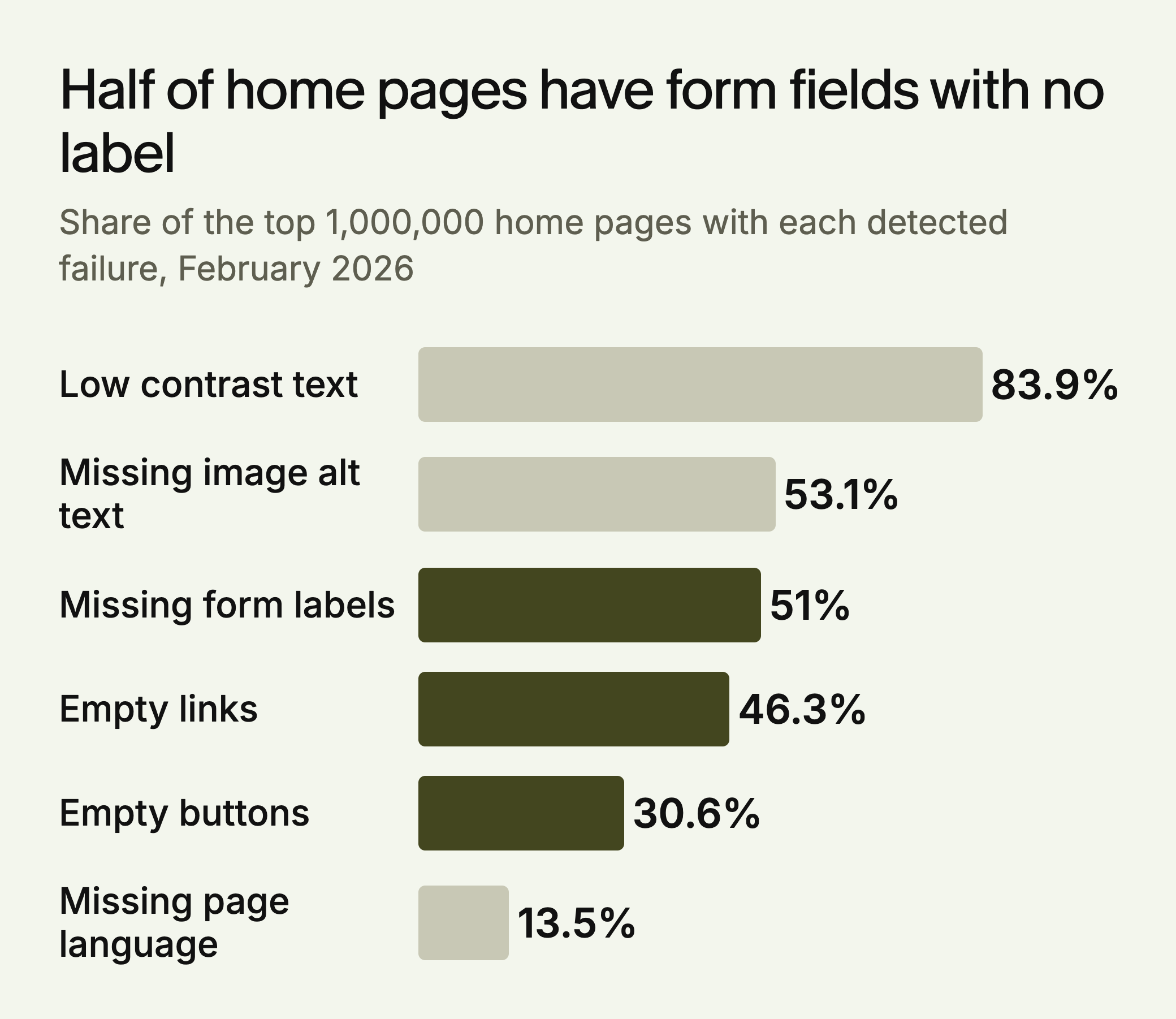
In our reading, the three highlighted failures are the ones most likely to stop software, because each leaves a control with no name. WebAIM measures accessibility and not agent success, so treat this as a sign of how common the problem is. We found no study that links these failures to agent task completion.
Why JavaScript-Heavy Sites Carry More Risk
Browser agents can run JavaScript, so a client-rendered site isn’t automatically invisible to them. The risk is in timing and interaction. Content that loads on scroll, appears after a delay, or sits behind a custom modal may not be there when the agent looks. Crawlers that don’t run JavaScript have it worse, since they only get the first HTML response.
Server-side rendering removes most of this risk. Put your pricing, feature explanations and contact details in the HTML of the first response.
What llms.txt Can and Can’t Do
llms.txt is a proposed markdown file that gives a short summary of a site and links to key pages. An agent can use it as a map. It has no allow, block or per-crawler rules, so it can’t control access. That job stays with robots.txt. llms-full.txt is a common add-on holding full text, and isn’t described on the proposal’s main page.
Keep your expectations low. SE Ranking’s study of about 300,000 domains found no measurable link to citations. In Ahrefs’ May 2026 log study, about 97% of the files received no requests that month. The AI bots that did fetch them included coding agents such as Claude Code, so the case is strongest for developer documentation.
MCP Endpoints
The Model Context Protocol lets an AI application call defined tools, such as a search of your catalog. Anthropic reported more than 10,000 active public MCP servers in December 2025, with support in products including ChatGPT, Cursor, Gemini and Microsoft Copilot.
A server only helps once a user or platform connects to it, so most sites can start elsewhere. Make sure key data such as pricing, feature lists and contact details is in plain HTML first. Build an MCP server when customers or partners would connect to it.
WebMCP: Tools a Page Can Offer Agents
WebMCP lets a web page offer JavaScript-based tools to AI agents through a modelContext object on the document. It’s published by the W3C Web Machine Learning Community Group as a draft report, and it says clearly that it isn’t a W3C Standard or on the standards track. Expect it to change. The November 9, 2026 draft has a page call document.modelContext.registerTool() with a name, a description, an input schema and an execute callback. Its security section lists prompt injection and over-collection of private data among the risks.
Most teams should watch it and do the basics now: use <nav>, <main> and <article>, keep headings in order, label interactive elements, and give custom components correct roles. None of this needs a new standard, and it helps people using assistive technology as well.
What to Fix First
- Marketing or content site: Put pricing, plans and contact details in server-rendered text, then fix navigation labels and headings.
- Ecommerce: Start with variant pickers, quantity controls and the add-to-cart path, since those are where a custom widget blocks a purchase.
- Web app behind a login: Crawlers matter less here. Focus on the accessibility tree of your core task, and consider an API or MCP server for repeat use.
Three mistakes come up often, and Kickpoint’s guide covers the first two:
- Installing an accessibility widget. Overlays can mask problems in the underlying page without fixing them.
- Adding ARIA without updating it. An
aria-expandedvalue that JavaScript never changes reports the wrong state. The W3C’s guidance says incorrect ARIA misrepresents the page, so use native HTML first. - Trusting one automated scan. Scanners find only part of the problem, which is why a keyboard pass and a real agent run still matter.
How to Test Your Site
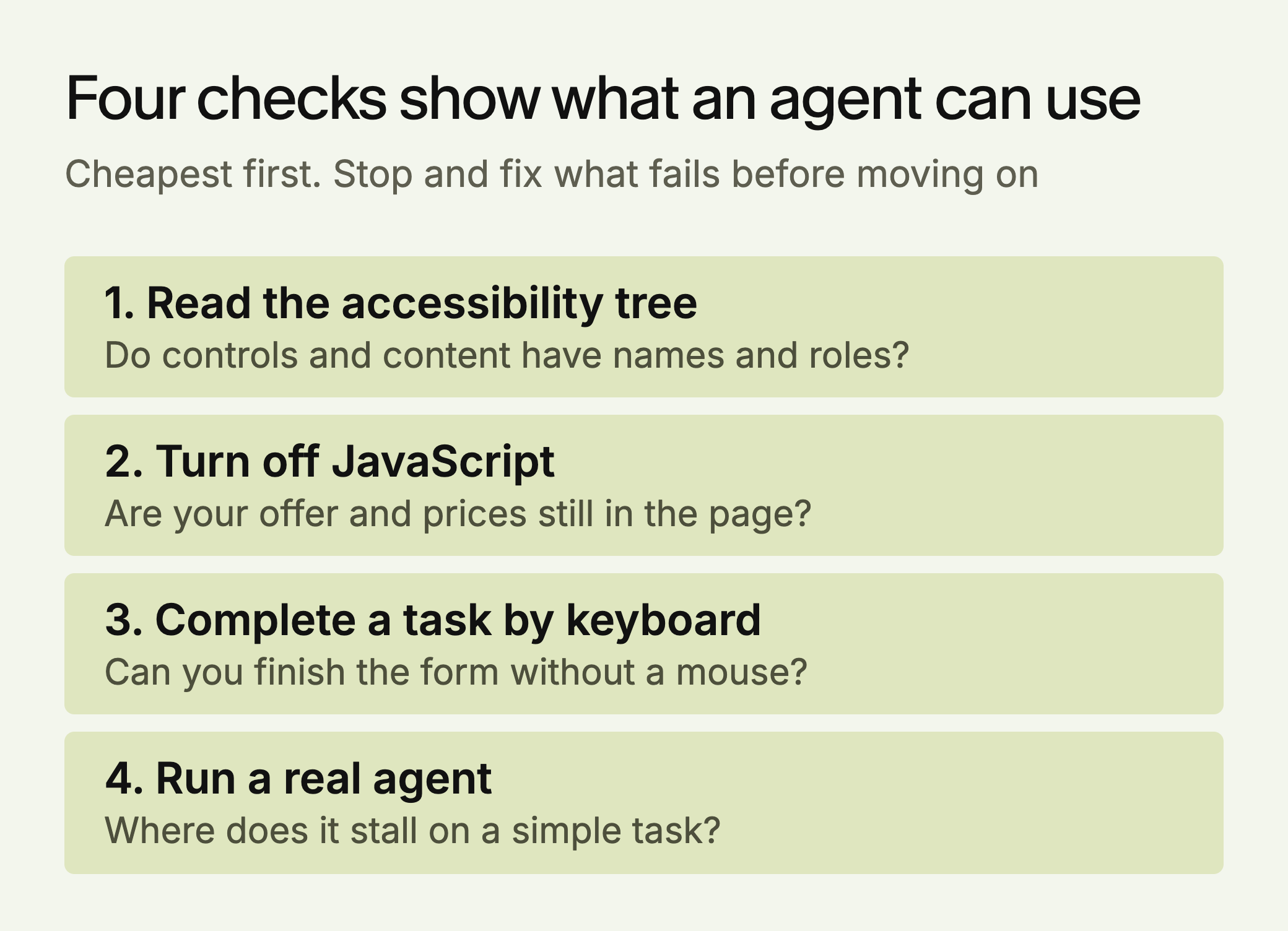
You can do most of this without an agent:
1. Check the accessibility tree. In Chrome DevTools, open the Elements panel, select the Accessibility tab and turn on Show accessibility tree, or run axe-core, on your key pages. Main content, navigation, buttons and form fields should appear with clear names and roles.
2. Turn off JavaScript. Load your most important pages without it. Your offer, pricing and main calls to action should still be there. This is stricter than a browser agent’s view, and close to what a non-rendering crawler gets.
3. Try a task by keyboard. Move through your signup or quote form with the keyboard alone. If you get stuck in a modal or lose focus, software driving the page may have trouble too.
4. Run a real agent. Give an agent a simple task, like finding your price for a named plan, and note where it stalls. Run it a few times, because a single pass can succeed or fail by chance. Claude’s documentation notes that it sometimes acts as if an action worked without checking the result, so confirm the outcome yourself.
Why This Is Worth Doing Now
Agents are already looking at the pages that sell. In HUMAN Security’s May 2026 data, as reported by PPC Land, product and search routes took 76.4% of agent traffic. That’s vendor data and it doesn’t show how many of those visits led to a sale.
Be wary of the claim that agent-readable sites convert nine times better. It rests on a Seer Interactive case study of one client, where people arriving from ChatGPT converted at 15.9% against 1.76% for Google organic, on just under 11,000 AI sessions. Those were human visitors, not agents.
The stronger argument is cost. These fixes are small, and they help every visitor who relies on assistive technology. They also don’t depend on any new format: Google says its AI features need no special markup or files beyond normal Search eligibility.
LLMagnet measures AI visibility across seven engines, and its agent prepares fixes for you to approve. The free audit at ai-visibility.llmagnet.com is a simple place to start.


 Ask Claude





 30-day free trial · no credit card